Continuous noise and dust measurement at urban works sites. Off-grid, pole-mounted, moved from site to site.
SensorMeasures every 10 min
LTE-M / NB-IoT every 2 h, daytime
CloudStores all records
HTTPS
Dashboardasense.semitronica.ptAPIFor your own software
On site Phone or laptop ⟷ sensor over Bluetooth, at central.semitronica.pt: checks it works.
What it measures
Noise
Sound level: average and peak of a 10 s capture. dB(A): A-weighted, like human hearing. dB(Z): unweighted.
Dust
PM1, PM2.5, PM10, in µg/m³ and particles/cm³
Position
GPS
Why it is built this way
Solar panel + battery
No mains connection needed on site.
Sends in daylight only
Radio use matches the solar energy. Night records are kept and sent at 08:00.
LTE-M / NB-IoT
Low-power mobile network. No Wi-Fi or site network needed.
Fanless optical dust sensor
Laser measurement in open air: the Doppler shift of scattered light gives each particle's speed. No fan, no air channel, no filter.
Membrane over the microphone
ePTFE lets sound through and keeps water and dust out.
Obstruction detection
Records with a blocked optical window are flagged, not reported as clean air.
Bluetooth only while charging
Bluetooth uses energy only when energy is coming in.
1
Mounting on a pole
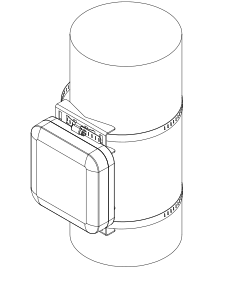
Round pole · 2 brackets · 2 clamps. Solar panel toward the sun.
You need
Screwdriver, for the bracket screws
7 mm spanner, for the hex nuts
8 mm nut driver or socket, for the clamps
Pole diameter
3.8 to 17.8 cm (1.5 to 7 in, supplied clamps)
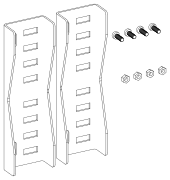
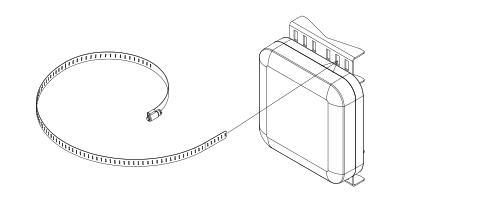
Check the kit: two brackets, four screws and four hex nuts.
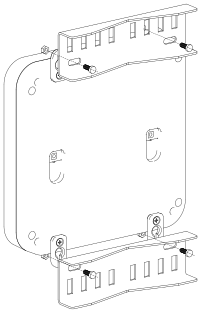
Place one bracket across the two top feet and one across the two bottom feet, open side away from the sensor.
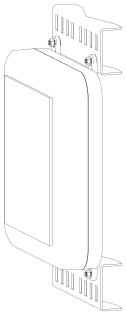
Push each screw through the bracket slot and the foot, then fit a hex nut on the front of the foot. Tighten the four nuts. Do not overtighten: the feet are plastic.
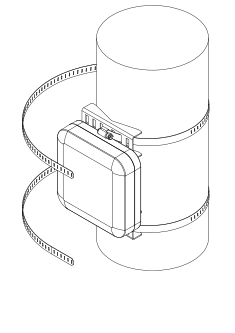
Thread a clamp through a slot in each bracket. Pick the slot that lines up with the pole.
Wrap both clamps around the pole and thread each one back through its bracket.
Turn the solar panel toward the sun. Hold the sensor against the pole and tighten both clamps with the 8 mm nut driver.
Facing the sunEurope: face south. No shade from buildings, trees or signs.
2
Power and data
Shipping mode
Shipping modeAs delivered. The sensor is switched off to save its battery.
First power from the supply or the solar panel
RunningMeasures every 10 minutes, stores and sends data.
Leaves shipping mode at first power: supplied power supply, or solar panel in daylight.
Power supply
Supplied power supply
12 V DC output, 230 V AC mains input
Sensor input voltage
5 to 15 V DC
Normal operation
Solar panel and internal battery
When it sends data
Measures
1 record every 10 min, day and night, stored in memory
Sends
Every 2 h, 08:00 – 20:00 local time, all stored records
Network
LTE-M or NB-IoT
Night records
Sent at 08:00
08:0010:0012:0014:0016:0018:0020:0000:0024:00
Sending times, local time. Daylight only, to match the solar panel's energy.
Bluetooth
On
Only while charging: power supply or solar panel
At night
Plug in the power supply to connect
3
First connection
Use central.semitronica.pt on site, next to the sensor, to check it works.
Phone or laptop with Bluetooth and a supported browser (table below). An Android phone with Chrome is easiest on site.
Sensor charging. Bluetooth is on only while it charges: plug in the power supply, or check the solar panel is in daylight.
Stand next to the sensor. Bluetooth reaches a few metres.
Windows
macOS
Linux
Android
iOS
Chromium browsers (Chrome, Edge)
✓
✓
✓ flag
✓
✕
Firefox, Safari
✕
✕
✕
✕
✕
Browsers with Web Bluetooth
–
–
–
–
✓
Linux: turn on one flagIn Chrome, open chrome://flags/#enable-experimental-web-platform-features, set it to Enabled and restart Chrome. Without it, web pages cannot use Bluetooth on Linux.
PIN555555Asked on every connection. This is normal, not a fault.
Pairing timea few minOn some phones and computers pairing takes a few minutes. Wait before retrying.
1
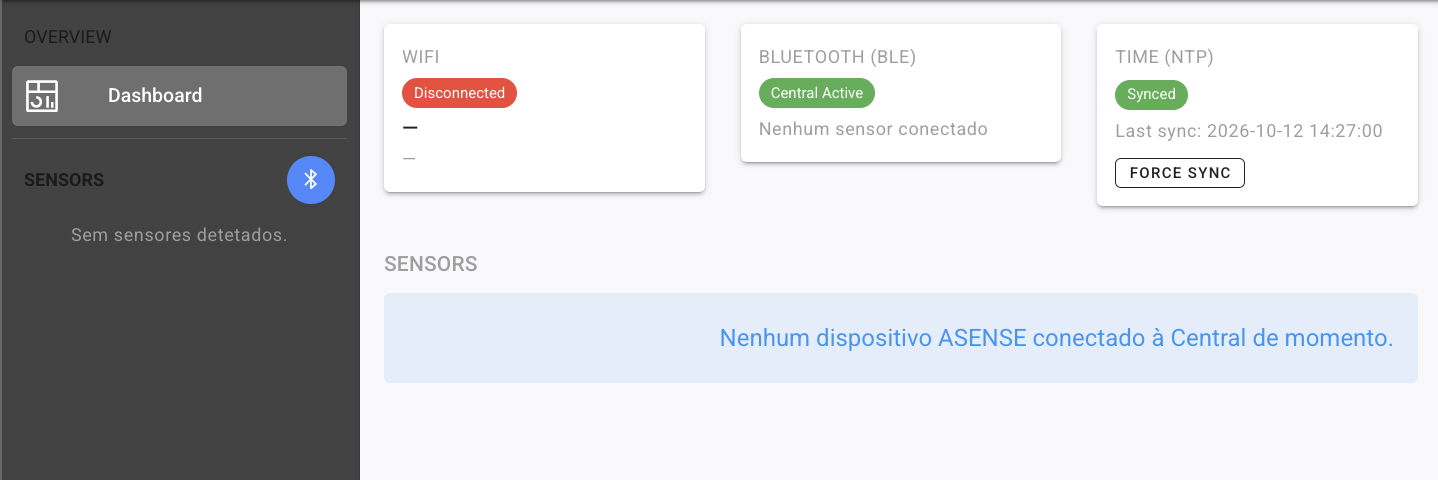
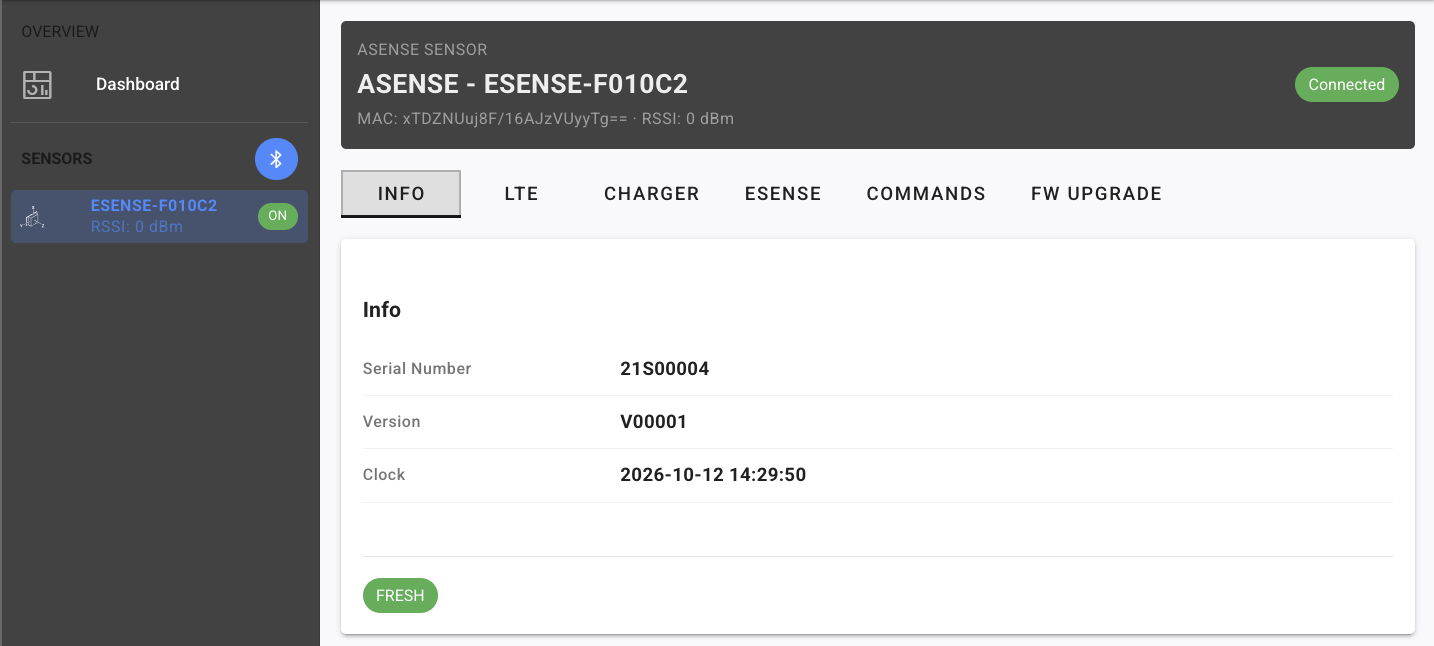
1Open central.semitronica.pt. Click the Bluetooth icon next to SENSORS.
23
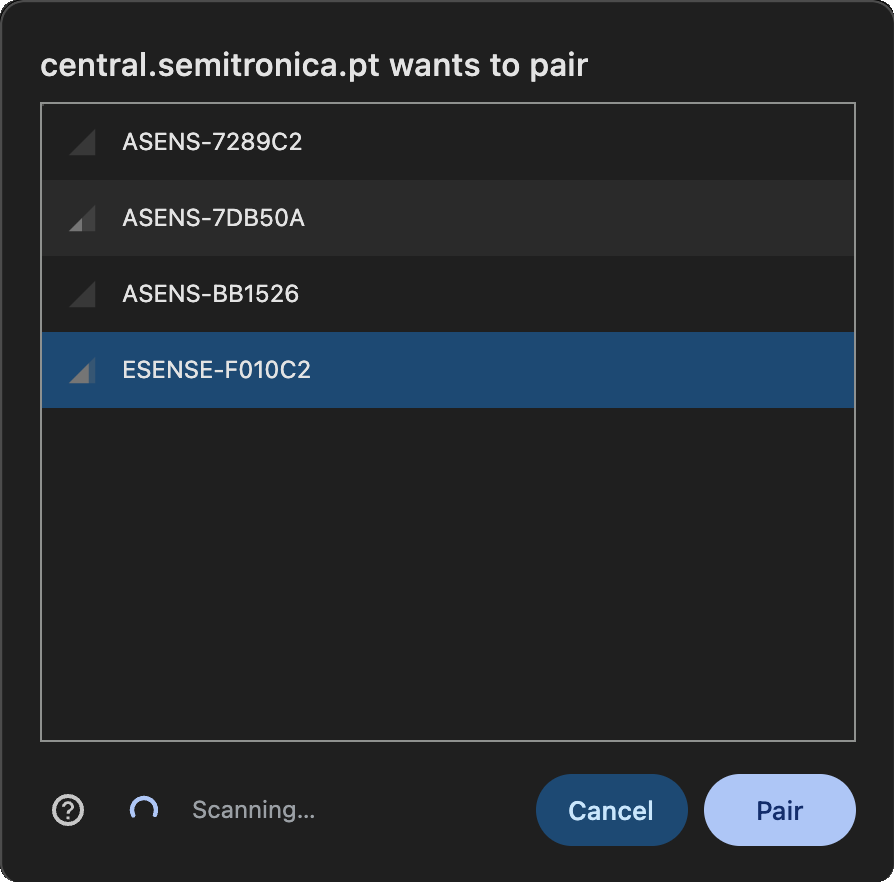
2Select ESENSE-… in the list. 3Click Pair, then enter PIN 555555. No ESENSE in the list? Check the sensor is charging and you are next to it, then wait: on some devices this takes a few minutes.
45
4Connected shown: the sensor works. 5Serial Number matches the label (ASENSE21S00004).
Your dataCentral is for checking the sensor on site. To read your measurements, use the cloud dashboard (chapter 4).
4
Cloud dashboard
Addressasense.semitronica.pt/dashboardAny current browser, any device.
Your API keyAlso used for the API (chapter 6).
12
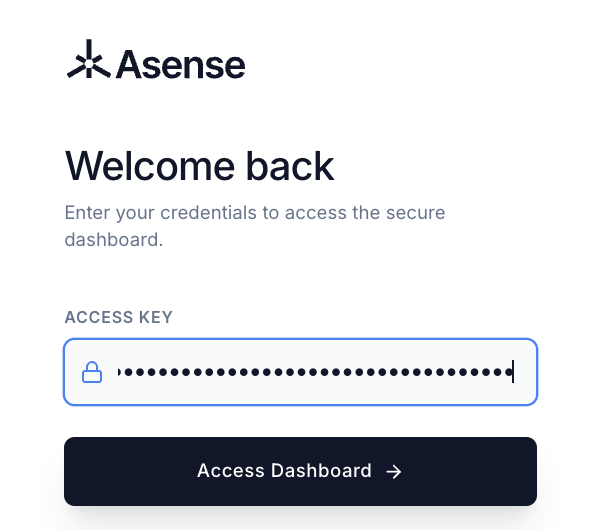
1Paste your API key in ACCESS KEY. 2Click Access Dashboard.
3
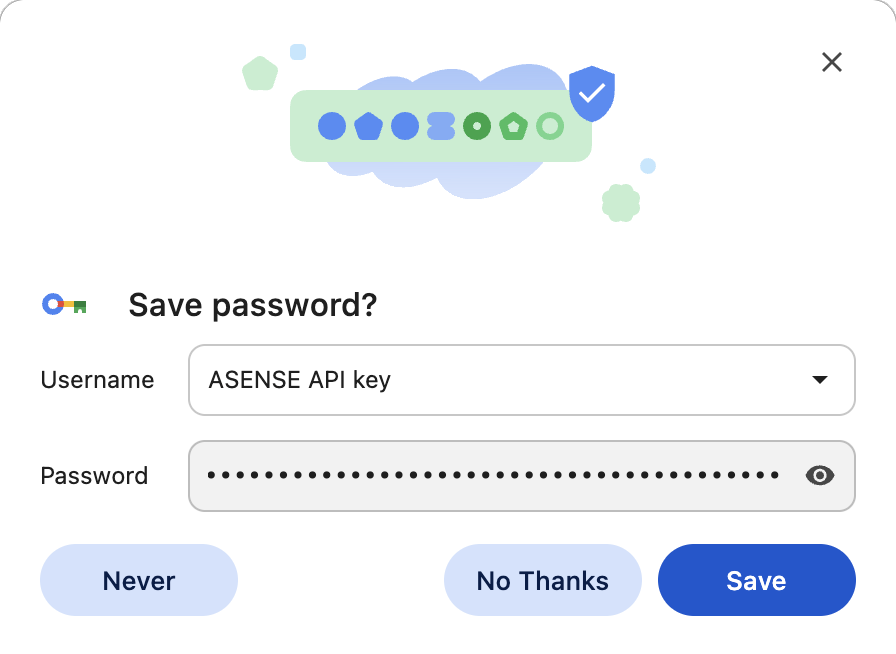
3Browser asks to save it: click Save. Next time the key is filled in.
4
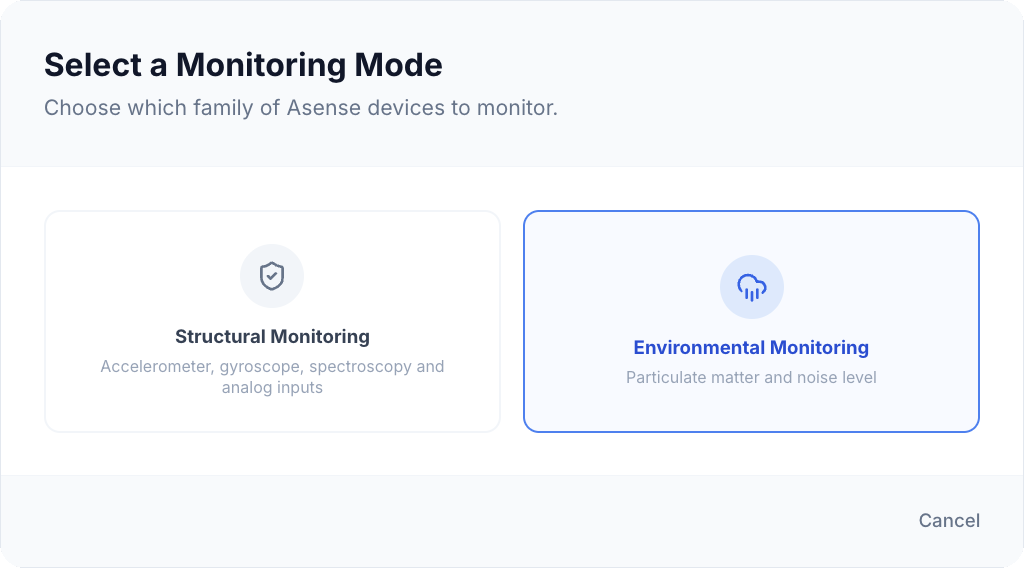
4Select Environmental Monitoring.
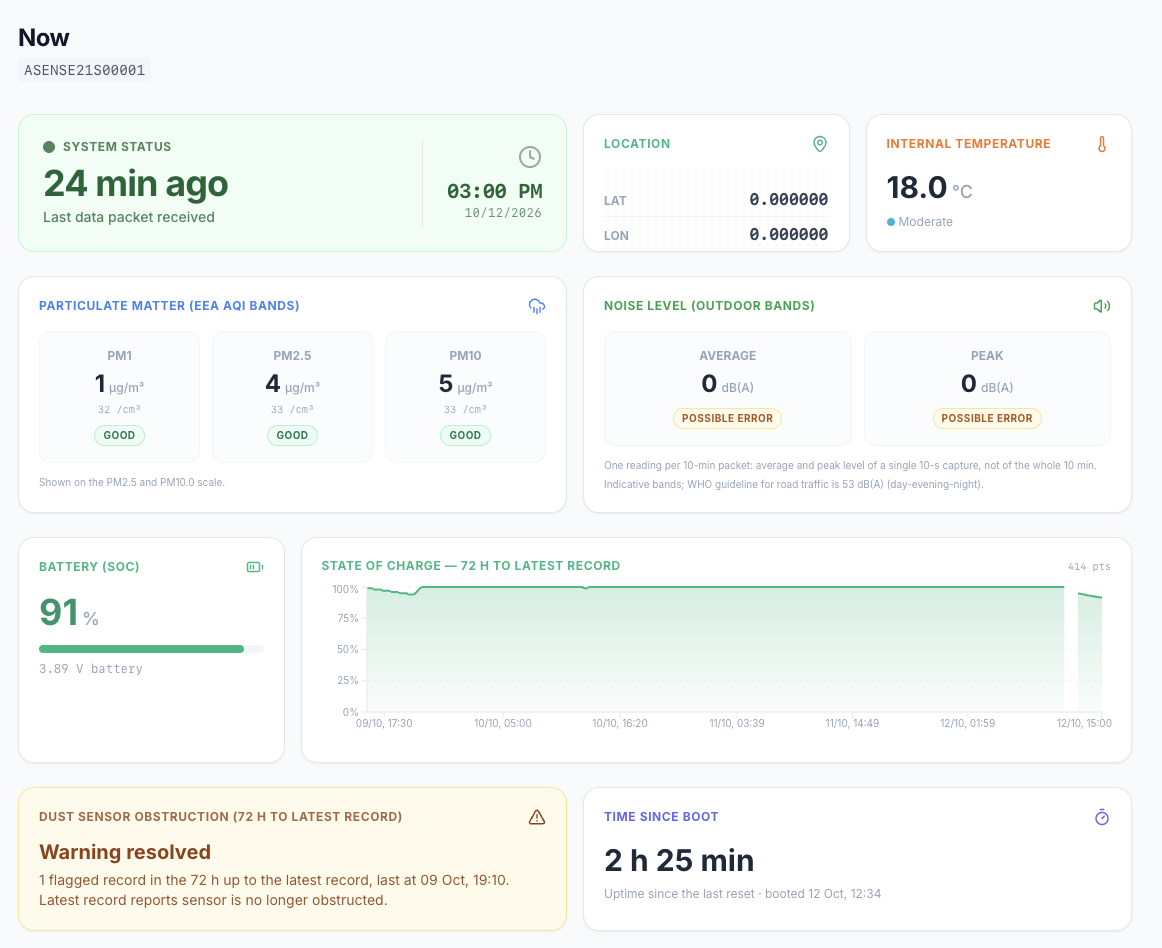
Now: latest record
ABCDE
A
System status Time since the last data packet. Daytime: under 2 h.
B
Particulate matter PM1, PM2.5, PM10 in µg/m³ and particles/cm³, with air-quality band.
C
Noise level Average and peak of one 10 s capture per record.
D
Battery State of charge, last 72 h.
E
Dust sensor obstruction Warning if the optical window is blocked.
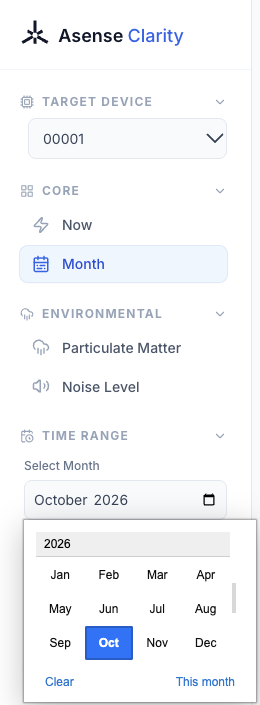
Navigation
1234
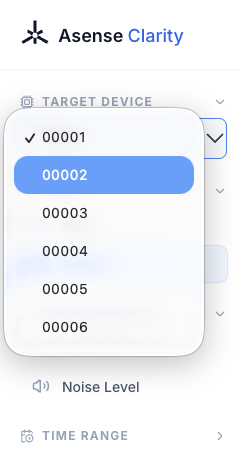
1
Target device 00001 = sensor ASENSE21S00001.
2
CoreNow: latest record. Month: data availability.
3
EnvironmentalParticulate Matter, Noise Level: charts and tables.
4
Time range Month shown on every page. This month = current.
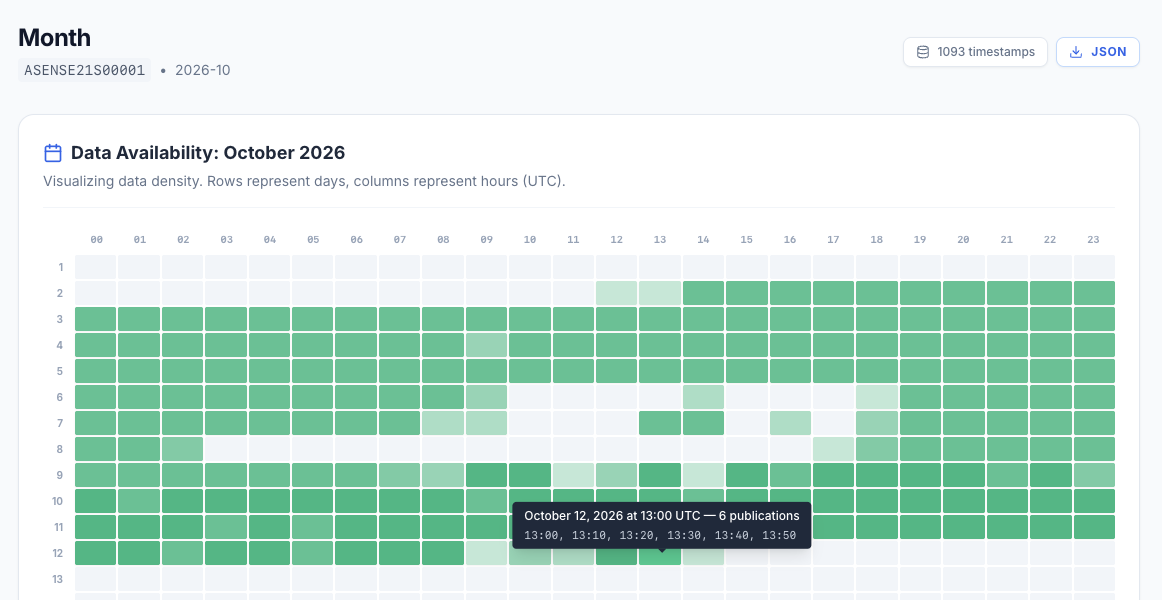
Month: data availability
▦
Rows = days, columns = hours (UTC). Green = records received; darker = more (6 per hour = complete). Hover a cell for its times.
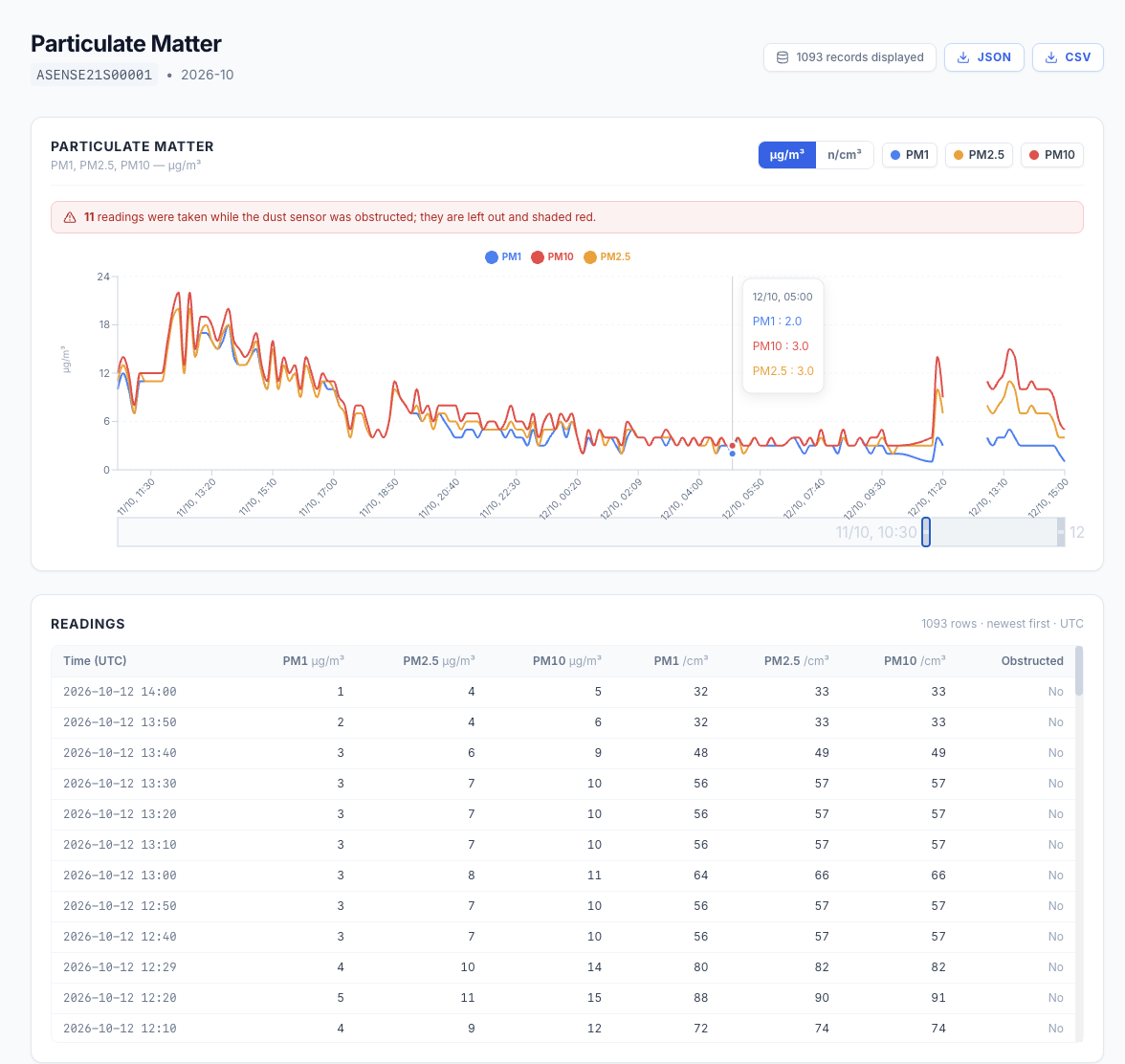
Particulate Matter
ABCDEF
A
Unit µg/m³ (mass) or n/cm³ (particle count).
B
Series Click to show or hide PM1, PM2.5, PM10.
C
Obstruction Readings with a blocked window are left out, shaded red.
D
Zoom Drag the handles to pick a time window.
E
Export Month data as JSON or CSV.
F
Readings One row per 10 min record, newest first.
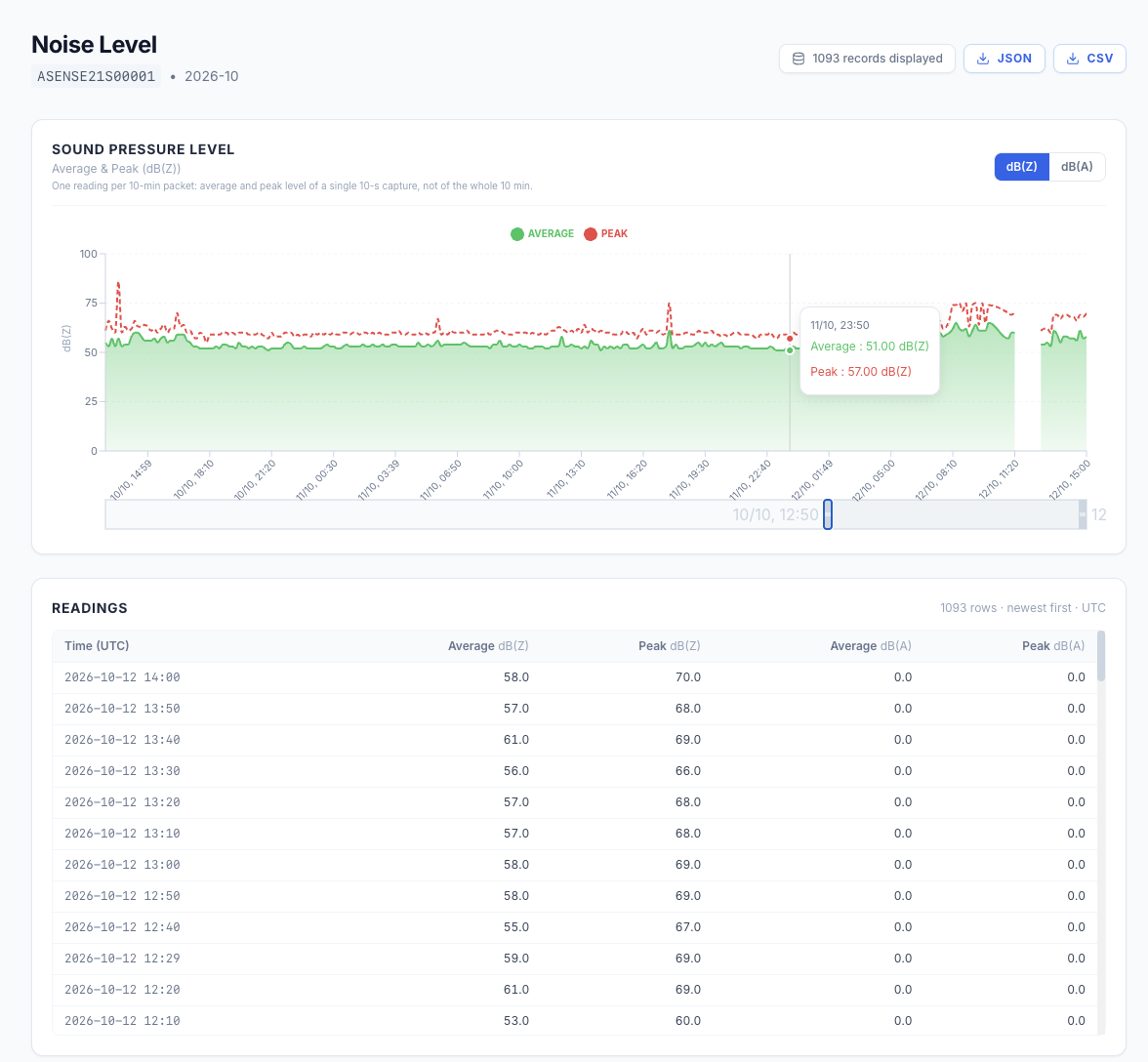
Noise Level
ABCDEF
A
Weighting dB(Z): unweighted, all frequencies. dB(A): weighted like human hearing.
B
Average · Peak Green: average level. Red dashed: peak level. Both from one 10 s capture.
C
Values Hover the chart: time and both levels of that record.
D
Zoom Drag the handles to pick a time window.
E
Export Month data as JSON or CSV.
F
Readings One row per 10 min record: average and peak in dB(Z) and dB(A).
Gaps in the chart = no records for that time.
Time zoneAll dashboard times are UTC. Portugal: UTC + 0 h in winter, + 1 h in summer. Spain: UTC + 1 h in winter, + 2 h in summer.
5
Troubleshooting
Find the symptom. Try the fixes in order, top to bottom.
No ESENSE in the Bluetooth list
Sensor charging? Plug in the power supply, or wait for daylight on the solar panel.
Wait. On some devices pairing takes a few minutes.
Turn Bluetooth off and on again.
Refresh the page and click the Bluetooth icon again.
Pairing fails or keeps disconnecting
Forget the ESENSE device in your phone's or computer's Bluetooth settings. Pair again, PIN 555555.
Close the browser or app completely and open it again.
Reset the Bluetooth adapter: Bluetooth off, wait 10 s, on.
Central shows an error or stops responding
Refresh the page and go to Dashboard.
Close the browser or app and open it again.
Forget the ESENSE device in Bluetooth settings, then connect again.
No Bluetooth icon, or nothing happens on click
Use a supported browser: Chrome or Edge on Windows, macOS, Android, or Linux with the flag on. iOS: a browser with Web Bluetooth (chapter 3).
Allow the browser to use Bluetooth when it asks.
Dust sensor obstruction warning
Clear the space in front of the optical window: up to 35 cm. Walls, signs, branches, cobwebs and insects all count.
Clean the window: soft, lint-free cloth, lightly dampened with water. No abrasives, no scraping, no fingerprints.
Wait for the next sending time, then check Now: the warning shows Warning resolved.
Dashboard shows no new data
Normal: data arrives every 2 h, 08:00–20:00 local time. Nothing arrives at night until 08:00.
Check the solar panel faces the sun and is not shaded or dirty.
Low battery: connect the power supply for a few hours, then check Now again.